




Loading screenpipe…

AI Second Brain

Pick up where you left off.

Screenpipe gives your AI access to your recorded work, so it can find past decisions and help you continue.

Stored locally on your machine

Interactive example · sample data

Pick up where I left offscreenpipe connected

Where did I leave off on the website redesign? Find the last changes, open questions, and next step.

Searched screenpipe

You finished the desktop pricing layout and started checking mobile.

  • Last change: Simplified the plan comparison in the editor.
  • Still open: The annual billing explanation wraps awkwardly on mobile. Your teammate also asked whether the trial needs a card.
  • Next step: Resolve that wording, then check the mobile layout before opening the PR.
3 sources
  1. Pricing layout changesCode editor
  2. Mobile pricing previewBrowser
  3. Trial copy discussionSlack
Opus 5.5
YBacked by Y Combinator

used by engineers and researchers at

MicrosoftGoogleNVIDIAIntelShopifyAtlassianDatadogAdobeSalesforceThomson ReutersBroad InstituteMITStanfordHarvardPlanet LabsWorktrace

You shouldn’t need to give your AI long prompts, screenshots, and meeting transcripts before it can help with work you already did on your computer.

screenpipe captures what you've seen, said, and heard on your computer. A supported AI you connect can use that recorded context to help you pick up where you left off.

Claude × screenpipe

Claude can use work context you never put in the chat.

With screenpipe connected, Claude can search the screen and meeting history recorded on your computer, so it can understand what changed and help you pick up where you left off.

See how to use screenpipe with Claude
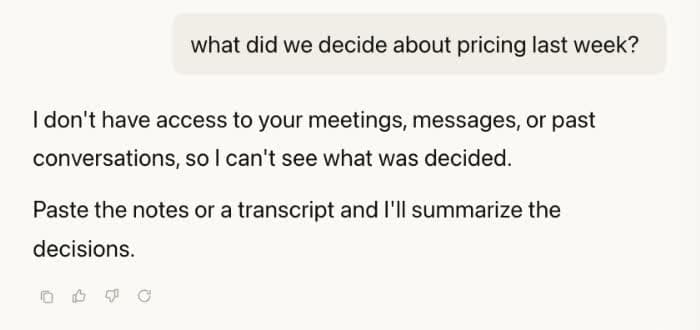
Without screenpipe
Claude cannot access the pricing discussion and asks for meeting notes or a transcript.
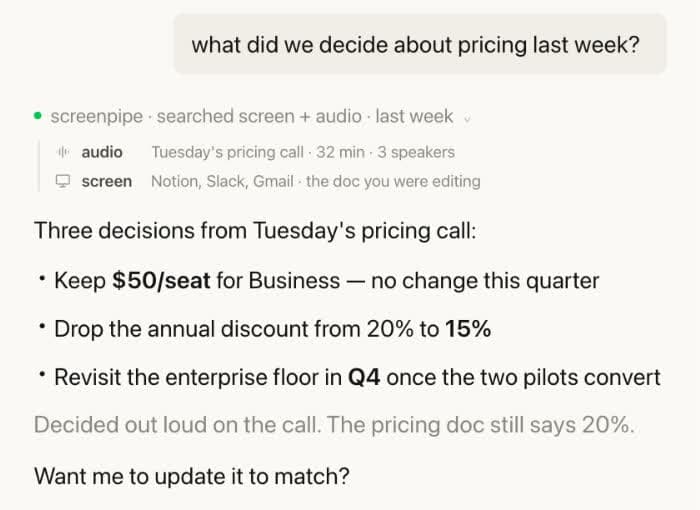
With screenpipe
Claude searches screenpipe screen and audio history, finds the pricing decisions, and identifies a change missing from the document.
View full-size image (opens in a new tab)

ChatGPT × screenpipe

Give AI context from your computer history.

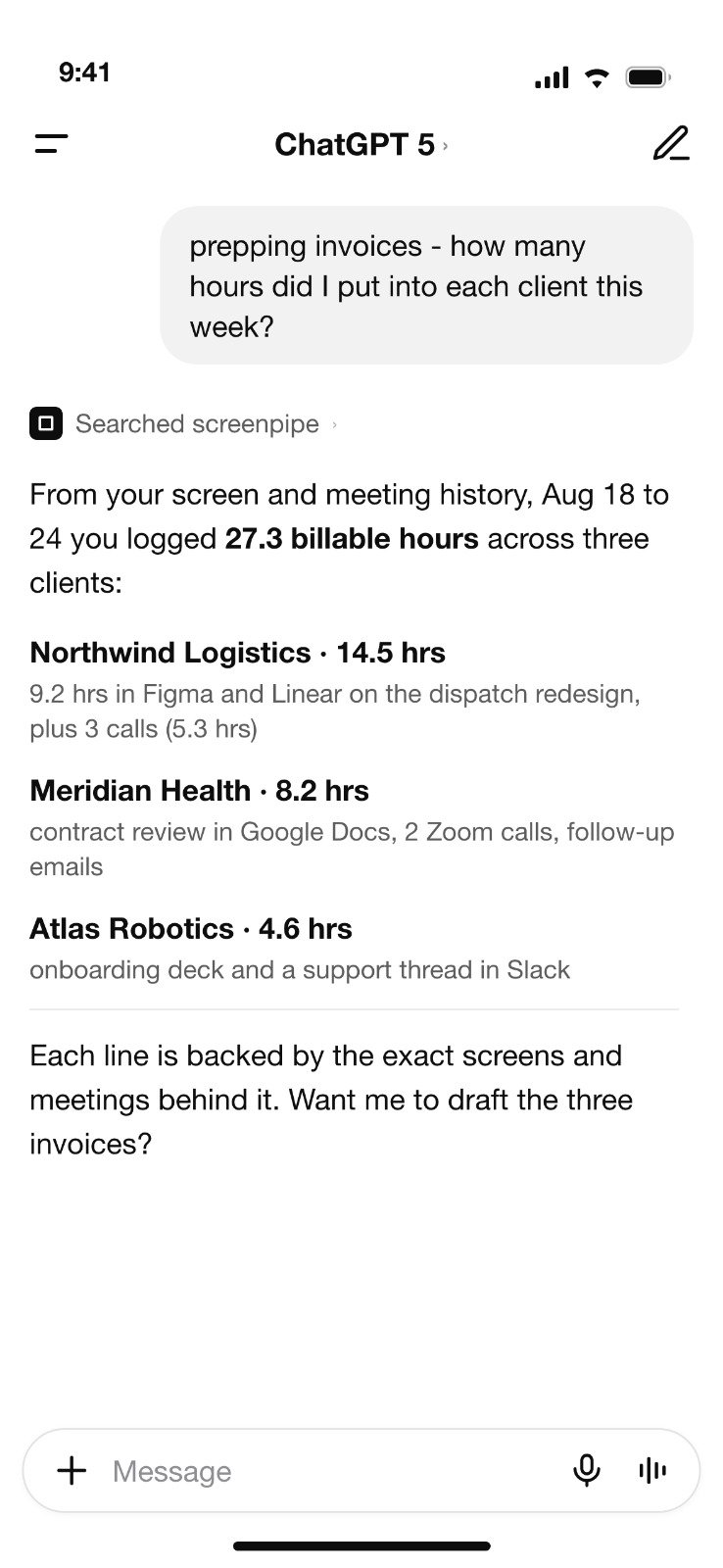
This example shows ChatGPT retrieving screen and meeting history recorded on your computer through screenpipe.

The guide covers Codex inside the ChatGPT desktop app. The connection for regular ChatGPT chats is still being verified.

See the Codex desktop setup
ChatGPT shows that it searched screenpipe, then summarizes time spent across clients from screen and meeting history.
View full-size image (opens in a new tab)

Optional mobile access requires screenpipe Business or higher and cloud-synced data. Mobile setup still needs verification.

Put your work context to use.

Start on your computer. Phone access is an optional next step, with screenpipe Business or higher and cloud sync.

  1. Install and record

    Choose what screenpipe records, then let it capture some work on your computer.

  2. Connect your AI

    In screenpipe’s Settings → Connections, check that your desktop AI is connected. Follow the guide for your app.

  3. Ask about your work

    Keep screenpipe running. Open a new chat in your connected AI and ask it to use your recorded context.

Try your first prompt

“Use screenpipe to summarize what I worked on in the last five minutes.”

See Screenpipe in action.

Watch how recorded work becomes context for your AI.

Want the full picture? Watch the 44-second product overview.

Your work context.
Your control.

Local-first recording and sharing context with an AI are different steps.

See how your data is handled
  • Choose what gets recorded.

    Exclude sensitive apps or windows and pause recording when you need to.

  • Keep your history local.

    Core recording and search can run on your computer. Sync and cloud features are separate choices.

  • Know what your AI receives.

    When a connected cloud AI retrieves your context, that provider processes it. Its data policies apply to the context you share.

Ready to put your context to work?

Start with your next AI conversation.

Questions before you start?

More ways to use your work context.

Your history can help with more than a single answer. Use it in the workflows and tools you choose.

Interactive example · sample data

Turn your work context into useful follow-ups.

See how recorded work can become a meeting summary, a CRM update, or a step-by-step guide. Choose an example to see the context and result.

Choose an agent example

Trigger
A meeting ends.
Context
The recorded conversation and notes visible during the meeting.

Result

Draft for review

Launch planning: meeting notes

A summary to review before saving to your notes.

  • DecisionFocus the first release on the onboarding flow.
  • Action itemMaya will review the setup guide.
  • Open questionWho owns the release checklist?

Example destination: Notes app

Sample data. Choosing an example does not connect apps or run an agent.

Your context. Your apps. Your choice of AI.

Send the result where you need it.

Use configured connections to send a summary to Notion or add call notes to HubSpot. Choose the tools your workflow uses.

Recording an app on your screen does not connect it. Sending information to another service requires a separate connection.

Keep your context when you change AI.

Your recorded history lives in screenpipe, not inside a single chat. A supported AI you connect can search that history, so you do not have to rebuild it for every new tool.

Choose your AI setup

Before you get started

Your AI, your recordings, and what to expect.

Still have questions? Ask us.

Let your AI pick up where you left off.

macOS · Windows · Linux · local-first