

screenpipe × Codex
Codex app + CLI
Give Codex the context around the code
A repository shows what exists now. screenpipe helps Codex retrieve what happened around it: terminal errors, browser research, product meetings, and decisions from other apps.
Checked against Screenpipe's current Codex connection code and documented setup on July 24, 2026.
The useful difference
The repository or chat is only part of the task.
screenpipe retrieves context from the apps, meetings, browser, and terminal around it. The agent gets the selected result, not an unbounded dump of your history.
What this unlocks
Useful context for Codex, on demand
Recover errors outside the repo
Find an error that flashed in a terminal, desktop app, or browser even when it never reached a log file in the repository.
Reconnect requirements to code
Search product meetings and planning conversations, then compare the original requirement with the implementation.
Resume after context loss
Reconstruct the debugging path, references, and decisions from before a new session or context compaction.
Use Screenpipe skills directly
The one-click connection installs Screenpipe API and CLI skills so Codex knows the supported search, meeting, memory, and scheduled task workflows.
Setup
Connect screenpipe to Codex
Use the app path for the safest default. The manual path is there when you want to inspect or own the configuration directly.
Recommended for Codex
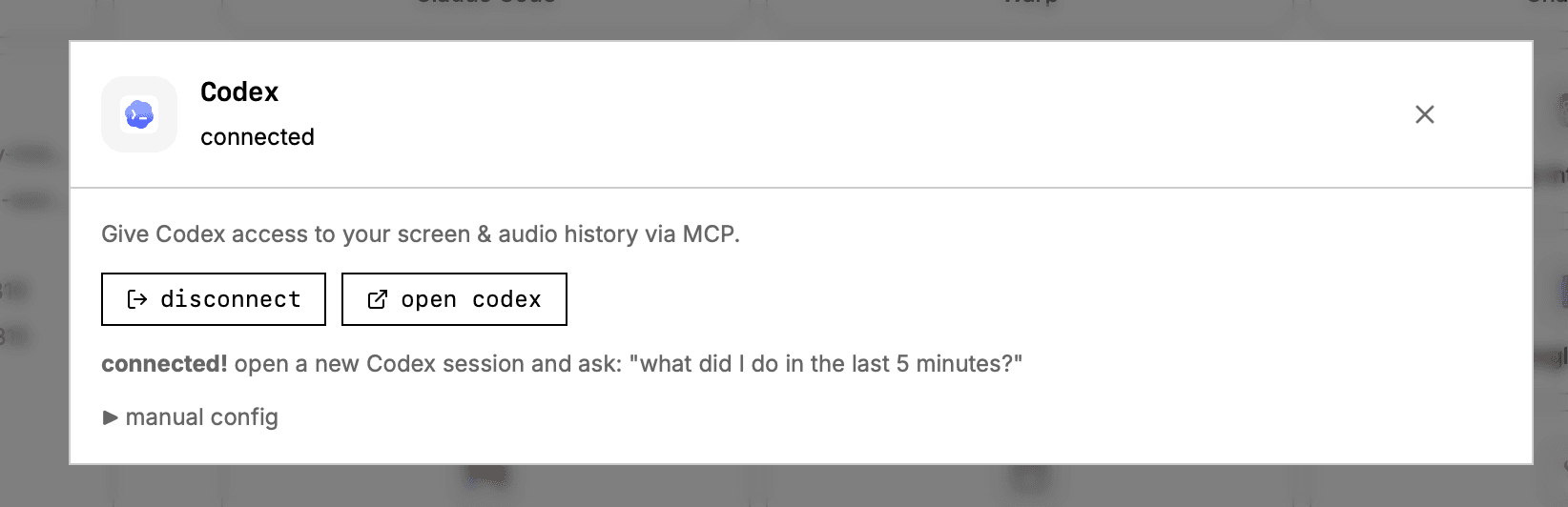
Connect from the screenpipe app
The app updates Codex's MCP configuration safely and installs the Screenpipe API and CLI skills.
- 1Open screenpipe and confirm recording is running.
- 2Go to Settings, Connections, Codex, then select Connect.
- 3Open a new Codex session and ask what you did in the last five minutes.
verify: Open a new Codex session and ask: "what did I do in the last five minutes?"
Manual Codex configuration
Add screenpipe to config.toml
Screenpipe registers the MCP server in ~/.codex/config.toml. Open a new Codex session after changing it.
- 1Add the table below to ~/.codex/config.toml.
- 2Keep screenpipe running on the same computer.
- 3Start a new Codex session and ask what you did in the last five minutes.
[mcp_servers.screenpipe]
command = "npx"
args = ["-y", "screenpipe-mcp@latest"]
enabled = true
verify: Ask: "what did I do in the last five minutes?"
Connect every detected AI tool
Use the screenpipe setup command
The Screenpipe CLI detects supported tools, preserves unrelated configuration, and installs the available MCP and skill integrations.
- 1Run the command once.
- 2Review the tools Screenpipe detected and connected.
- 3Open a new Codex session after setup completes.
npx -y screenpipe@latest setupData boundary
Local capture does not mean the agent sees nothing
MCP is useful because selected results enter the agent's context. Treat that handoff as an explicit data boundary and choose what you capture, search, and share.
Capture and index
In local-only mode, raw screen and audio capture plus the searchable index stay on the device.
MCP retrieval
The local server searches for the requested phrase, app, meeting, memory, or time range and returns the selected result.
Codex context
The selected result is sent into Codex's context and is then handled under that provider's settings and policies.
Cloud AI, sync, connectors, exports, and team workflows are separate choices. Review the privacy and data-flow guide before using sensitive work context with an external model.
Real workflows
Prompts that use context Codex did not have
Recover a transient error
Find the exact message and the surrounding screen state before changing code.
“Search my screen history for the database error I saw in the last hour. Return the exact text, app, time, and what I did immediately before it appeared.”
Trace a requirement back to a meeting
Use the original customer or product discussion as implementation context.
“Find the meeting where we discussed the new onboarding state. Extract the acceptance criteria, then compare them with the current implementation in this repo.”
Recover documentation you already read
Locate a page or code sample that is no longer open without repeating the research.
“Find the official documentation I read yesterday about MCP tool approvals. Show the relevant passage and URL before proposing changes.”
Reconstruct a long coding session
Build a source-backed handoff after switching machines, branches, or sessions.
“Summarize my work on this feature since this morning using screen and terminal evidence. Separate completed changes, failed attempts, and open questions.”
Troubleshooting
Common connection issues
Codex cannot retrieve screenpipe context
Confirm the entry exists in ~/.codex/config.toml, screenpipe is running, and you opened a new Codex session after connecting.
The manual npx server will not start
The manual path requires Node.js 18 or newer. Connecting from the screenpipe app uses its bundled runtime and also installs the Screenpipe skills.
Does memory sync copy my raw recordings into AGENTS.md?
No. The optional beta memory sync writes distilled Screenpipe memories into AGENTS.md on an interval. It does not copy raw screen or audio capture; those remain governed by Screenpipe's storage and sync settings.
Keep exploring
Give Codex the missing context
Start screenpipe, connect the agent, and test one concrete recall question from work you did today.