
screenpipe #34 | You were busy all week, but on what?
get updates on screenpipe news and releases
Newsletter #34, September 30, 2026. Workflows is in beta.

Where did your day really go?
Hi all, Louis here.
You close the laptop after a packed day (or maybe keep it open for your agents to run 😉). The thing you meant to finish is still on tomorrow's list.
Here's a prompt for that moment that I use every day. Give Screenpipe your top three priorities, then ask it to compare them with your recorded work. You get a review you can check, with time estimates, visible results, and sources.

Copy this into your next chat
Use Screenpipe Chat, or Codex or Claude with Screenpipe connected. You'll need recordings from the workday you want to review. Paste the prompt, then answer its question about your priorities.
Use Screenpipe to review my previous workday in my local timezone.

First ask me what my top three priorities were. Then examine the available screen activity and meeting transcripts for that day.

For each priority, show:
- What I actually worked on.
- Estimated active time, using ranges when appropriate.
- The concrete result you can verify.
- A timestamp or source reference.

Separate unrelated work into its own row. Don't count an open window or an unattended agent run as continuous work. Don't infer that a task was completed just because I spent time on it.

Finish with the biggest mismatch between my priorities and my activity, and one specific adjustment for tomorrow. State any meaningful recording gaps. Keep the report under 400 words.
Check the sources before acting on the report. A draft isn't a sent email, and an agent running in the background isn't necessarily your active work time.
Also shipped this week
- Create and edit SOPs as web pages inside Workflows.
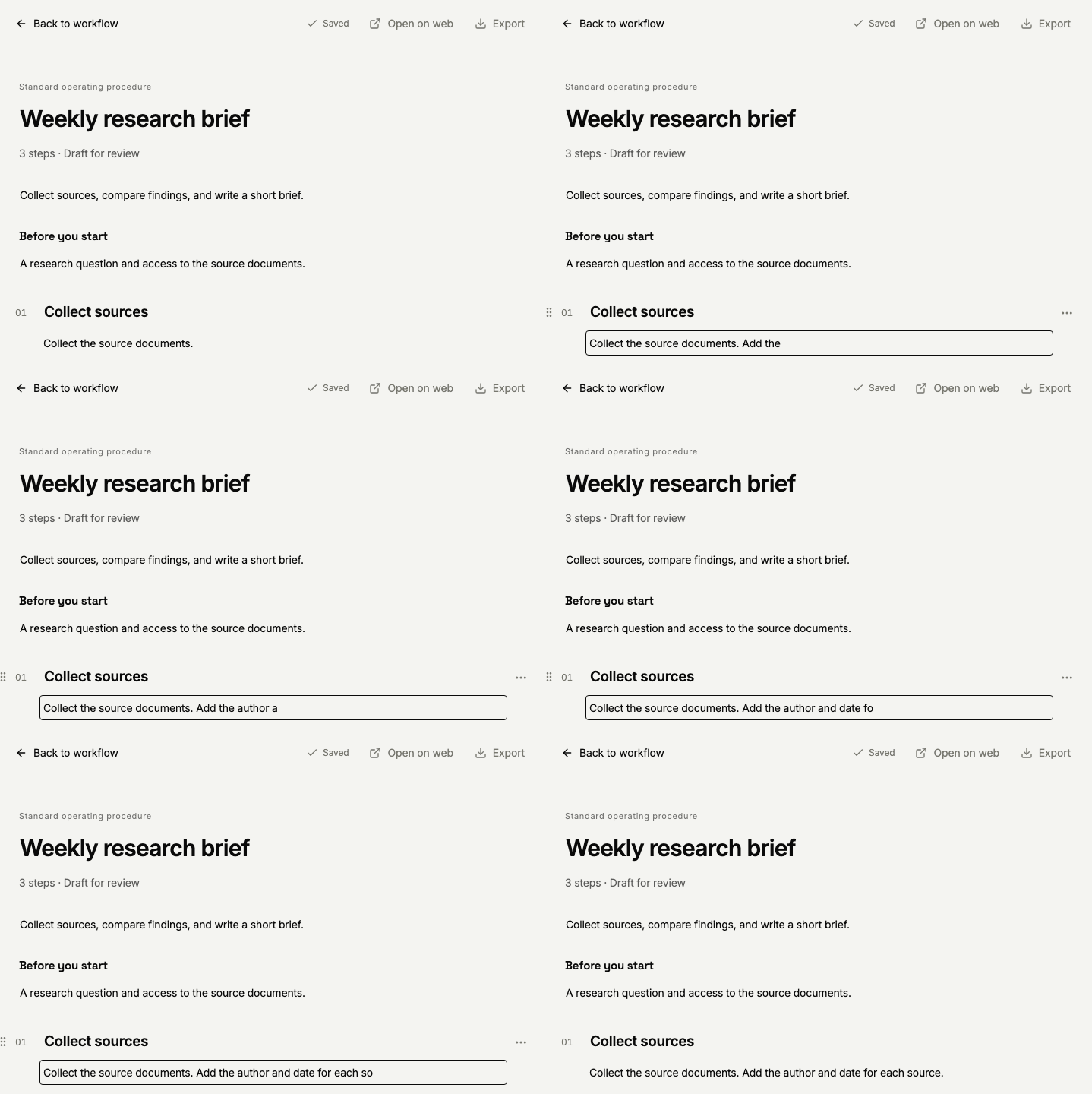
Example SOP editing in the development UI, using fictional content.
- Export SOPs as HTML files to share or print to PDF.

Example SOP export options in the development UI.
- Generate AI videos inside of your SOPs
- Better meeting playback alignment and recovery when a summary fails.
- Installable Screenpipe MCP plugins for Claude and OpenAI.
- And more!
Louis
Screenpipe For Enterprise
get updates on screenpipe news and releases